In my quest to provide customers with awesome reports I’ve been looking at why the performance in Power BI can be so slow at times. As I pointed out in earlier posts the OData.Feed can be quite the resource hog depending on the endpoint, so I’ve started to fall back on Json.Document to get much better preview times (but not without it’s drawbacks, like record count, connected tables and option set labels).
Just because I’m kinda new to this I like to perform a lot of the logic using M in the query editor, then I sew it all together with relationships and measures inside the reports I build. I noticed that the previews kept getting slower the more I logic I added, so get the ultimate magic tool and looked at what was happening.
First step: Json.Document(Web.Contents(“https://<org>.api.crm4.dynamics.com/api/data/v8.2/opportunities”))

OK, so it makes a request to Dynamics and retrieves the data in 3.435 seconds. That’s not fantastic, but it’s not bad.
Second step: = Source[value]

OK, no requests made. That’s what I would expect from it
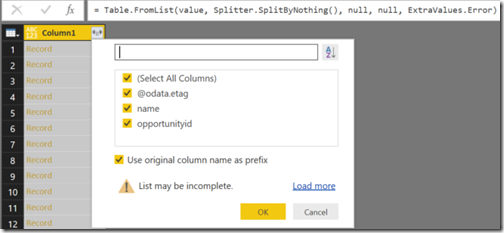
Third step: = Table.FromList(value, Splitter.SplitByNothing(), null, null, ExtraValues.Error)

Still no requests made, that’s great
Fourth step: = Table.ExpandRecordColumn(#"Converted to Table", "Column1", {"actualclosedate", "actualvalue", "budgetamount", "estimatedclosedate", "estimatedvalue", "name", "opportunityid", "pzl_countryregion", "statuscode"}, {"Column1.actualclosedate", "Column1.actualvalue", "Column1.budgetamount", "Column1.estimatedclosedate", "Column1.estimatedvalue", "Column1.name", "Column1.opportunityid", "Column1.pzl_countryregion", "Column1.statuscode"})
Guess what? Still no requests.
Fifth step: = Table.TransformColumnTypes(#"Expanded Column1",{{"Column1.estimatedclosedate", type date}})
No requests. Great, so we only make 1 request per step, as long as we don’t merge in more columns? Not quite.
Refresh preview

Wait what? 5 requests, that’s 1 request per step. That makes the loading time increase from the original 3+ seconds into well over 15 seconds. I don’t have the answer for why it makes a new request for each and every step, but let me show you the consequence of this when you use OData.Feed instead of Json.Document
These are the steps taken:
- = OData.Feed(https://<org>.api.crm4.dynamics.com/api/data/v8.2/opportunities)
- = Table.SelectColumns(Source,{"actualclosedate", "actualvalue", "budgetamount", "createdon", "estimatedclosedate", "estimatedvalue", "name", "new_calculatedrevenue", "new_product", "opportunityid", "pzl_countryregion"})
- = Table.TransformColumnTypes(#"Removed Other Columns",{{"createdon", type datetime}})
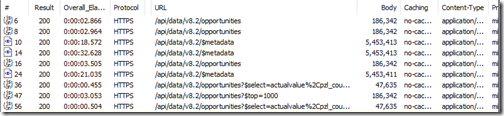
Now that should be enough to make you think twice before reporting on Dynamics data in Power BI. As you can see it’s the metadata documents which takes the longest, but for some reason there are 4 requests to the “all opportunities” endpoint and the metadata endpoint, while there are 3 requests to the opportunity endpoint with reduced number of columns (fields). Also, there is one top=1000 request which completes before the last two. This tells me that when you refresh the data, the requests are made in sequence for each step, but the steps are performed in parallel. It almost smells like premature optimization.
So let’s break this down and do it step by step.
Step 1

OK, great, one request for the opportunities and one for the metadata, finally one to get the top 1000 records for the preview.
Step 2

Now we see that it makes the same three requests as it did in the previous step, but it also performs another set of requests against “all opportunities” and metadata before it performs a request against opportunities with reduced number of columns (fields).
Step 3

Finally, it does all the requests from previous steps, but it also adds another duplicate for this current step (which only converts the type, and doesn’t require collecting more data from the source system).
The magic workaround
Just by pure luck, when I tested this originally I got 4 duplicates of the “all opportunities”+select requests, and I couldn’t figure out where the 4th duplicate came in. Turns out, because I made a reference from this opportunity query into a new query, and the data is refreshed in all referenced queries as well as the parent(s).
That made me test one final thing. I created a new reference query after I had done all my logic in the main query.
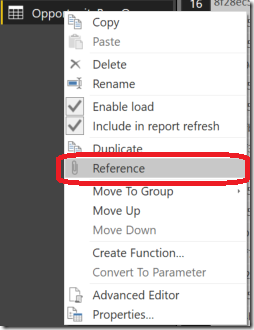
Then I refreshed the data while in the reference query.
Step 1: = Query1

Voilà! Only one set of requests, even though it’s technically the fourth step.
This means I just saved myself many duplicate requests, and the data loads much faster than for each subsequent step. This was only for 3 steps, imagine how much this will matter if you have 10, or 20 steps in your queries.
The wrap up
So in summary, when you refresh the preview for a query in a Power BI, all the requests are are repeated and added on for each step you have in that query. It’s an exponential growth of data gathering, and can make everything slow as nothing else.
Creating new queries with references removes the need to duplicate all the requests, and you can keep working with and massaging the data without having to worry about minutes of data reloading.