
Backup and restore strategies for Dynamics CRM 2016
This post is all about backup and restore. I'll be going into some strategies for backing up and restoring your MSCRM-environment. A common misconception is that backing up the database is all you need, and I'll explain why that isn't the case.
Prerequisites
I'm assuming that you know your server names and have a basic understanding of how to back up files and SQL Server databases. I also assume that you have a way to back up encryption keys and passwords (for example KeePass (official site) ).
I also assume that the user account you're using is part of the "PrivUserGroup" AD group.
Backup routines
Backup your SQL Server Reporting Services encryption key
This isn't CRM! Well no, it isn't strictly CRM, but if you want to be able to restore your magnificent, custom tailored, beautiful SSRS reports then you might want to have the encryption key used by SSRS to connect to it's database. You only have to back this up whenever it changes, which typically is whenever you migrate to a new environment or set up a new SSRS-server, so there's no need to keep doing this on a regular schedule. You should do it atleast once, though.
Log on to your SSRS server and open up the "SQL Server 2014 Reporting Service Configuration Manager" (assuming you're running SQL 2014). Select the report server instance you want to configure, which is the one you specified for CRM during installation (please note that the SSRS instance does not necessarily have the same name as the SQL Server instance CRM uses).

Navigate to "Encryption Keys" on the left hand side, and click the "Backup" button. You'll get a new window asking you where to store the key and to choose a password for it. Now, the key is a file you'll have to save somewhere safe. Now, I'm not going to promote practically free and safe storage in Microsoft Azure, but I would definitely put it in a secure storage area in Azure. The password specified for the file should be stored in your password management system, and if you happen to use MICROSOFT AZURE then you'll have a nice URL you can add to the password entry.</plug>

Backup the CRM encryption key
Now for some good old myth busting... kind of. When CRM 2013 first came around the option to encrypt certain tables in the database was introduced. To be able to use server-side-synchronization and specify passwords for mailboxes required you to enable encryption first, and to enable encryption you would have to connect over HTTPS (well, unless you changed those settings with the orgdborgsettings tool). In CRM 2015, encryption is turned on by default, with a long, automatically generated key, and in CRM 2016 it's no different.
Because of this there are some CRM administrators out there who don't know that CRM2015 and newer will have encryption turned on by default, so if you migrated to a new SQL Server then you'd just import the database and everything would be "fine and dandy". That's not the case anymore, you have to backup the encryption key to be able to do that.
So how do you get the key when you aren't using HTTPS in your CRM environment? If you open up CRM and navigate to Settings -> Data Management and open up data encryption you will get this error:

So I'm going to guide you through how to get past this limitation without having to restarting anything.
What you want to do add an additional binding to your CRM website, an HTTPS binding with a self-signed certificate. Head into Internet Information Services (IIS) and highlight the server, then open up Server Certificates from the home screen.
What you want to do add an additional binding to your CRM website, an HTTPS binding with a self-signed certificate. Head into Internet Information Services (IIS) and highlight the server, then open up Server Certificates from the home screen.

Open this feature, and on the right hand side click the "Create Self-Signed Certificate..." link, and you'll get a new "Create Self-Signed Certificate" wizard. Fill in the name of this certificate and click OK (both personal and web hosting will work).

Now navigate to the Microsoft Dynamics CRM site in IIS from the left hand side, under "Sites". Click on the "Bindings..." link on the right hand side to get the site bindings configuration window. In this window, you will probably just have one binding beforehand, so click the "Add" button to add a new binding. Choose https as the type, the default port will be fine, and select the newly created self-signed certificate for use.

Click OK, then close, and from the right hand side just click the "Browse *:443 (https)" link to open up CRM with SSL encryption enabled. You will be presented with a warning screen which tells you that the certificate isn't trusted for this site, but that's OK because you just created this certificate yourself, and it's just for this purpose you're using it. Click on the red shield with the text "Continue to this website (not recommended)".

From the navigation bar, find Setting -> Data Management. Click on the "Data Encryption" option to open up the Data Encryption settings. And voila! You have the option to show and change the encryption key. The existing key will probably have alot of foreign characters (depending on your native language), and it's fine to keep it that way, or you can change to a new one. I often just generate a new Guid from powershell and add some additional special characters inside it, but as I said the default encryption key is pretty great considering that it's already all special characters. For this installation I'm going to change it into something that is NOT SAFE!

Now, you might get an error saying you're not part of the PrivUserGroup, if you did get this message then that means you'll have to add your user account to the PrivUserGroup corresponding to your organization, or find someone who can grant you that group membership.


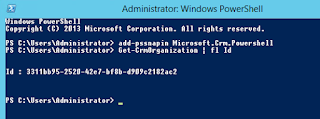
Beware, though, if you have multiple CRM deployments you will have several PrivUserGroup AD groups. To find the one you need to be added to, open up powershell and type in the following two commands:
add-pssnapin Microsoft.Crm.Powershell

Get-CrmOrganization | fl Id
This will list your organization(s) and give you the ID which succeeds "PrivUserGroup" in the group name.
Now, put that encryption key into your password management system (btw: Have you considered using Azure Key Vault for storing stuff like this? Feel free to contact me if you have any questions regarding Azure Key Vault and storing encrypted data).
Finally, go back into IIS and remove the binding that we added earlier. Just follow the same procedure as provided above, except remove instead of add. If you don't want to keep the self-signed certificate (which you shouldn't), then just go to the "manage server certificates" window as described earlier and remove the certificate from the list.

Now, put that encryption key into your password management system (btw: Have you considered using Azure Key Vault for storing stuff like this? Feel free to contact me if you have any questions regarding Azure Key Vault and storing encrypted data).
Finally, go back into IIS and remove the binding that we added earlier. Just follow the same procedure as provided above, except remove instead of add. If you don't want to keep the self-signed certificate (which you shouldn't), then just go to the "manage server certificates" window as described earlier and remove the certificate from the list.
Back up CRM data
This is the easy part, this is simply a SQL Server backup as long as you're following the Microsoft best practices (not changing any system files, not putting any plugins into the GAC/filesystem, etc). Just do your normal SQL Server backups and keep them available for restoration. I would also recommend that you do a new backup of the Master database, because if you environment fail and you restore the databases to a new system then the Master will include information about user permissions and also be allowed to read from the encrypted tables.
If you don't know how to do SQL Server backups then you probably shouldn't do that on your own, and if you want to learn I heartily suggest you check out the work of Ola Hallengren, the king of maintenance jobs on SQL Server.
Restore strategies
Restoring CRM isn't that big of a deal, actually, so I'm going to give you a very quick, 101 on how to restore a failed CRM environment. You will find information on how to do these steps in my previous blog posts and in this one. I recommend that you design your strategy based on your environment, maybe create a shiny step-by-step guide by actually performing the steps in a QA environment.
Remember, having a backup/restore strategy is not the same as knowing how to perform the actions needed when your system fails. Make sure that you've been through the ropes atleast once, and repeat them when necessary. If you're going to be doing alot of development in your environment then I can recommend that you try it out whenever you're cloning production back to development/test/QA. That way you're sure to remember what to do if disaster strikes in production.
- Restore your most recent backups of the CRM Databases
- Restore the user/group permissions on the SQL Server instance (if necessary). I won't go into the details because you should be aware of what you're doing when you're messing around in SQL Server, and this post would get too lengthy if I included DBA training in it.
- Restore the ReportingServices database
- Open up reporting services configuration manager (as described earlier in this post). Choose to attach to an existing database, and import the encryption key you've backed up and stored the password for.
- Install Microsoft CRM 2016 on an application server, in the server installation choose to connect to an existing instance instead of creating a new deployment. Point to the database server where the MSCRM_CONFIG-database is located
- Import the existing organization databases into CRM through the Deployment Manager (only if the databases have been moved to a new server)
- Add the https-bindings to your CRM site in IIS as described in the backup steps, open up CRM and navigate to Settings -> Data Management -> Encryption. Enter the encryption key you've backed up in your password management system or similar.
- Remove the https-bindings. Make sure that everything works as expected and shabang, your done!
So that's it for today, it's quite the lengthy post (again), so you're entitled to some cake and an extra good cup of coffee.
In tomorrows post I will demonstrate how to add manage organizations in the deployment manager tool and how to get access to them. I will also include some great tips for performance on the SQL Server side (nothing too fancy, mind), so I'm considering that a level200 topic.


